The Watch app
See new documents on your wrist, dictate notes, assign tags.
On this page
Documont includes an Apple Watch app. It tells you at any moment which documents have just arrived, and it lets you add notes and tags to them. Reading, searching, sharing and deleting stay with the web app and the iPhone app.
Installing it and getting access#
The Watch app is part of the iPhone app. If “Automatic App Install” is turned on under “General” in the Apple Watch app on your iPhone, it appears on your watch by itself once the iPhone app is installed. Otherwise you install it from “Available Apps” in the Apple Watch app on your iPhone.
You do not sign in separately on the watch. It gets its access from the iPhone: connect your account in the iPhone app and open the iPhone app once while the watch is paired and the Watch app installed. Until then the bottom of the watch’s main screen reads “No access from iPhone”.
The document list#
The main screen shows the documents that arrived most recently, up to 20 of them. Tap a document to open it.
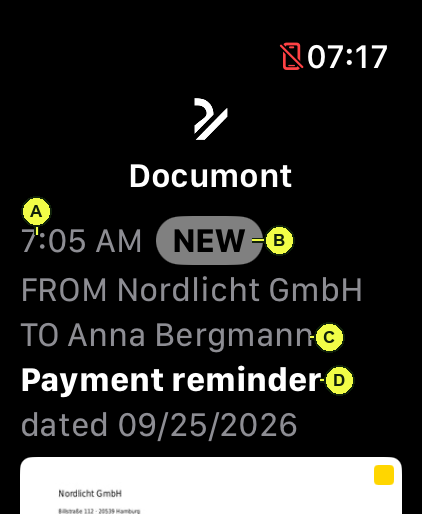
(A) Time of arrival – just the time if it arrived today, otherwise date and time.
(B) NEW – the document is still unread; the same marker you see in the web app.
(C) FROM and TO – one name each. If one side has both a company and a person, the company is named. If you have marked people and/or organizations as “That’s me”, they are left out here, because all you want to know is who a document came from or went to → That’s me.
(D) Document type, and below it the date on the document if it was recognized (“dated 04/29/2026”).
The document’s preview image follows below these lines. A yellow square on it means the document has a note.
Note and tag#
The document view shows the document type, FROM and TO, and two buttons.
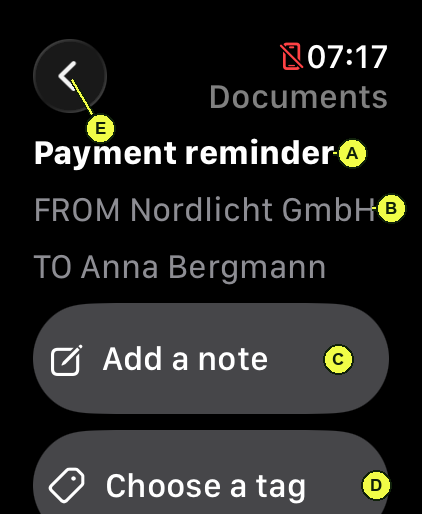
(A) Document type.
(B) FROM and TO.
(C) Add a note – opens the watch’s text entry (dictation or Scribble). The note is saved on the document and shows up everywhere else in Documont as well. A note cannot be read on the watch; all you see is that a document has one.
(D) Choose a tag – opens the tag list.
(E) Back to the list.
Opening a document on the watch does not mark it as read.
Assigning a tag#
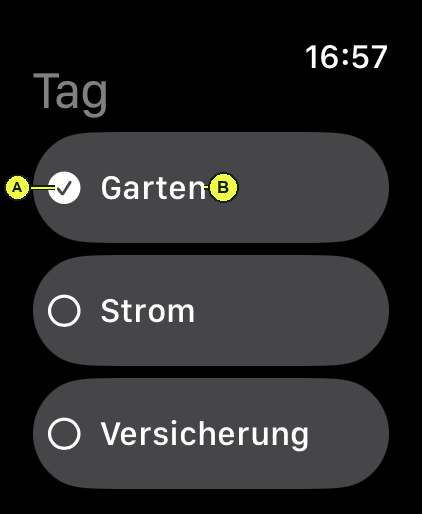
(A) A check mark in front of a tag means it is assigned to the document. A tap assigns the tag or removes it; the change is saved right away and is visible everywhere in Documont at once.
(B) The name of the tag.
The list holds every tag in your account. New tags are created in the web app → Creating tags.
The watch face#
Documont can sit on your watch face as a complication.
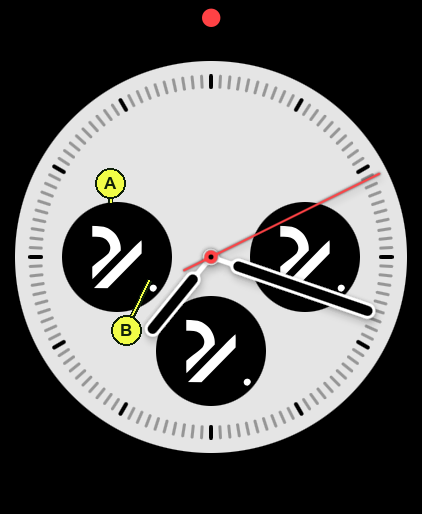
(A) The Documont mark. A tap opens the Watch app.
(B) The dot: there are unread documents. It disappears as soon as everything has been read.
Notifications#
You get a notification when a new document arrives, or when somebody writes or edits a note on one of your documents. The display options are the same as for every other Apple Watch app.
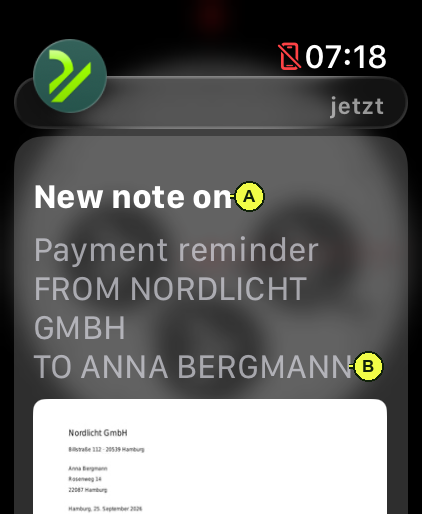
(A) The reason – a new document or a new note.
(B) Document type, FROM, TO.
Tapping the notification opens the document on the watch, with the buttons for note and tag.
When the watch shows nothing#
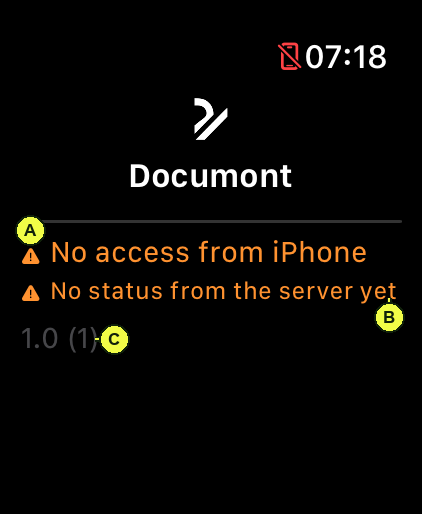
(A) “No access from iPhone”: connect your account in the iPhone app and open the iPhone app once.
(B) Whether there are unread documents, and when the watch last reached the Documont server.
(C) The version of the Watch app.
“Not reachable” with an error message: the watch has no connection to the server; “Try again” makes another attempt. A list that has already loaded stays put when something goes wrong. “Nothing here yet”: the account holds no documents.
What the Watch app cannot do#
- Read documents – it shows the preview image, not the contents.
- Search, share, delete, mark as read.
- Sign in and out – both happen on the iPhone.
- Settings – the Watch app has none; it uses the language set in the iPhone app.