Creating tags
Creating a new tag in a document or on the documents page.
On this page
There are two places to create a new tag: in a document, at the moment you assign it, or on the documents page.
In a document#
Open a document and click “Tags” at the right of the header bar (next to “Filter”). A panel opens with the document’s tags and a text field.
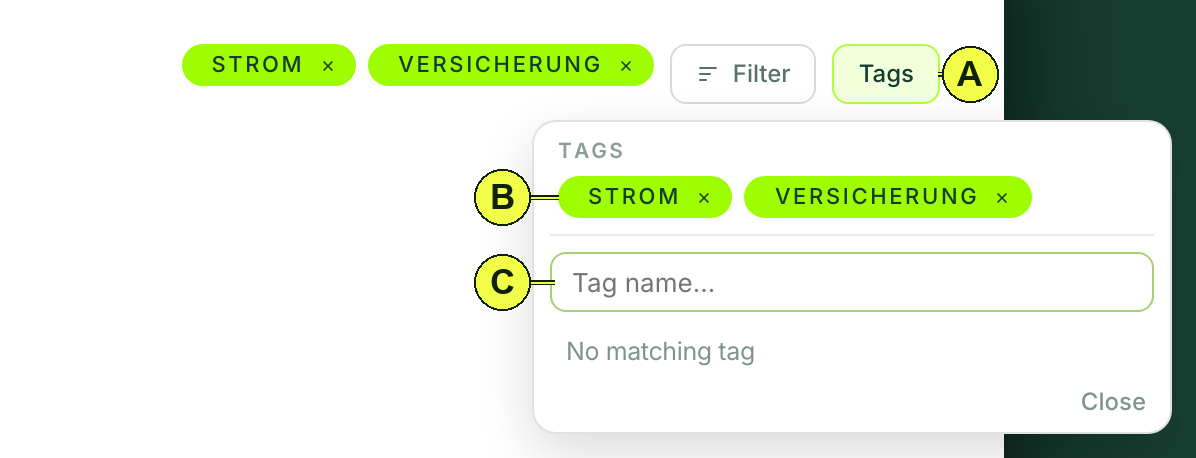
(A) The “Tags” button.
(B) Assigned tags; the × removes a tag from the document.
(C) The text field.
Type the word. Matching existing tags appear below the field; a click assigns one. If the word does not exist yet, the first entry reads “Create “Rent” as a new tag”. Clicking it or pressing Enter creates the tag and assigns it to the document.
On the documents page#
There is a “+” below the tag stacks. It creates a tag without opening a document; Documont confirms with “Tag created successfully.” The tag gets a stack of its own as soon as a document carries it.
Rules#
- A tag is 1 to 50 characters long. Capitalization makes no difference: “taxes” and “Taxes” are the same tag.
- A document carries up to 50 tags, your filing up to 500.
- A new tag is available everywhere at once: in every open window of the web app, in the filters and on the Apple Watch.
- The × on a tag removes it from the document; the tag itself stays. Renaming and deleting a tag are not possible at the moment.